
What recording should I use for VoxCPM2 voice cloning?
Check the 3–30 second upload limit, record a clean single voice, and write the new words you want it to say. See when Voice Design makes more sense.
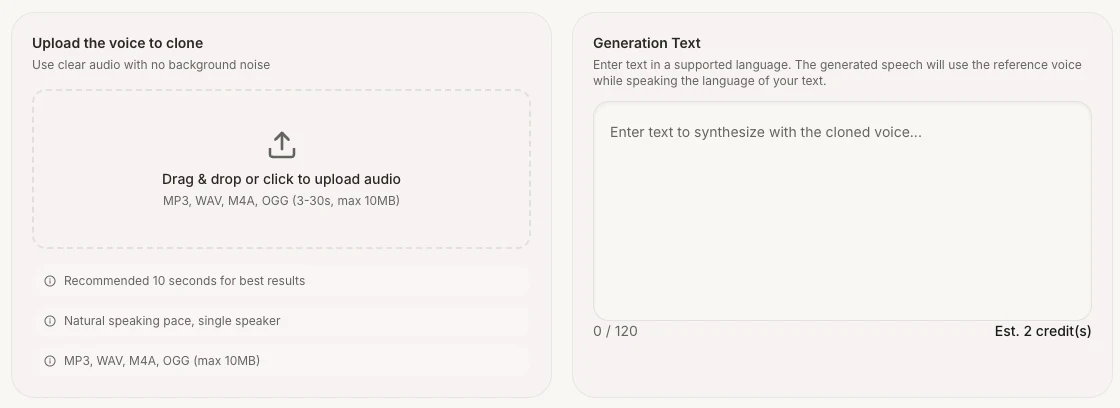
Choose Voice Cloning when you have your own recording, or one you have explicit permission to use, and want its voice to read new words. Choose Text to Speech when you just need a script read aloud. Choose Voice Design when you have no recording but can describe the voice you want.
See the Text to Speech guide for short scripts, playback and downloading. Voice Design creates a voice from a description; it does not clone a particular person's recording. Try a description such as “A warm, calm adult voice at a moderate pace,” then enter your own short script as Preview Text. Both the description and preview text have 200-character input limits.
Prepare an authorized recording
Start with your own voice. Before using someone else's, obtain explicit permission covering upload, synthesis and your intended use, and keep a record of that permission. Being able to play or download a recording online does not establish permission to clone it. Keep passwords, phone numbers and private conversations out of both recording and script.
The upload area lists MP3, WAV, M4A, OGG, 3–30 seconds, maximum 10MB. The panel also recommends about 10 seconds. Meeting the input limits does not guarantee voice similarity.
- Record one speaker in a quiet room at a natural pace and a steady microphone distance. Avoid music, echo and other speakers.
- Record around 10 seconds of an original script, for example: “Today I am recording an introduction to a small exhibition. Walk along the corridor and take your time looking at the photographs.” If you need more speech, add another sentence rather than padding with silence.
- Listen to the start, end and full sentence. Check for clipped words, distortion and loud background noise. Keep the original file and save a separate upload copy; check its actual duration and size again after editing.
Use the cloning panel and know when to sign in
Open Voice Cloning. Choose Upload Audio or Record Audio. Listen using the panel's player after selecting a file. Recording requires you to allow microphone access in your browser; listen to that take before submitting, too.
Generation Text means the new words you want the cloned voice to read. It is not a request for a transcript of the reference recording. Try “Welcome to today's small exhibition. Take your time looking around.” Check the character counter and current allowance, then choose Create Voice Clone once. Keep the page open while it queues; wait for the result player before listening and downloading.
The site allows signed-out users to try Text to Speech and Voice Cloning within the current anonymous allowance. Neither uploading nor recording requires sign-in first; recording also needs browser support and microphone permission. Use the limits and remaining allowance shown for your session, and follow any sign-in or usage-limit prompt. If the local reference file is missing after signing in or navigating, select it again.
Voice Design requires sign-in. After filling Voice Description and Preview Text, a signed-out user choosing Generate Voice sees “Login Required,” with “Register Free” and “Sign In.” Account usage and credit conditions still apply after signing in.
Is a three-second clip long enough?
To learn the preparation and comparison steps first, listen to and download these site-generated samples from the existing TTS guide:
- English MP3: 3.04 seconds, 124,910 bytes. Original input: “Hello, this is a short VoxCPM2 speech demo.”
- Chinese MP3: 3.84 seconds, 156,627 bytes. Original input: “你好,这是一段 VoxCPM2 语音演示。”
We checked both MP3s on November 15, 2026. They are mono, 48 kHz files within the upload limits. The English clip clears the minimum by just 0.04 seconds. Trimming the opening could put it below the limit. Neither clip reaches the suggested ten seconds.
These examples let you check file duration and hear the original TTS. For a cloning test, use your own recording or one you have permission to reproduce. We did not run a cloning quality test with these clips.
For your own comparison, use the same new script in Text to Speech and Voice Cloning, such as “The small exhibition is ready. You are welcome to visit.” For Chinese, try “今天的展览已经准备好了,欢迎你来参观。” Keep text, language and punctuation fixed. First check whether each result reads every word correctly; then compare voice character, pauses, naturalness and unwanted noise. After that, change only one reference file at a time. Record what you hear without expecting every new take to be identical.
Check where the failure happens
- Upload format, size or duration error: export a supported audio format and check the actual size and 3–30-second duration. Renaming an extension does not convert audio.
- Recording cannot start: check microphone permission and the input device. Use a prepared file if your browser does not support recording.
- Create Voice Clone is unavailable: select audio, fill Generation Text, resolve character or duration errors, and check whether another task is running.
- Credits, usage limits or sign-in prompt: follow the account prompt and review plans and limits if needed.
- Queued: the request has been accepted. Wait for the result without resubmitting.
- Explicit generation or service-connection failure: keep the error text, check your inputs and retry later as instructed. For persistent failures, provide the time and error message without sending a private recording.
- The result sounds poor: first check that all words were read. Compare the same script with a clearer, single-speaker authorized recording closer to the recommended duration.