
How to turn text into downloadable speech with VoxCPM2
Hear the same text-to-speech workflow in English and Chinese. Try either script in the online generator, check the result, and save the audio.

Open Text to Speech, paste a sentence and choose Generate Speech. You can leave the voice unselected. When your result appears, press play to check the reading, then choose Download. Here are two short scripts you can try, along with the audio we made from them.
Listen to the two examples
English · 3.04 seconds
Hello, this is a short VoxCPM2 speech demo.
Download the English MP3
Chinese · 3.84 seconds
你好,这是一段 VoxCPM2 语音演示。
Download the Chinese MP3
We rendered these examples on November 13, 2026, using the site's internal VoxCPM2 workflow. Each run used the text above, with no voice preset, reference recording or style instruction. We converted the results from FLAC to mono, 48 kHz MP3. The times shown are the lengths of the files. If you try the same sentence in the web tool, listen for how it reads the name “VoxCPM2” and where it pauses. A new take can sound different. An automatic transcript returned “though” where the English input says “Hello”. Check names and the first syllable by ear before using a take in a project.
Make your own recording
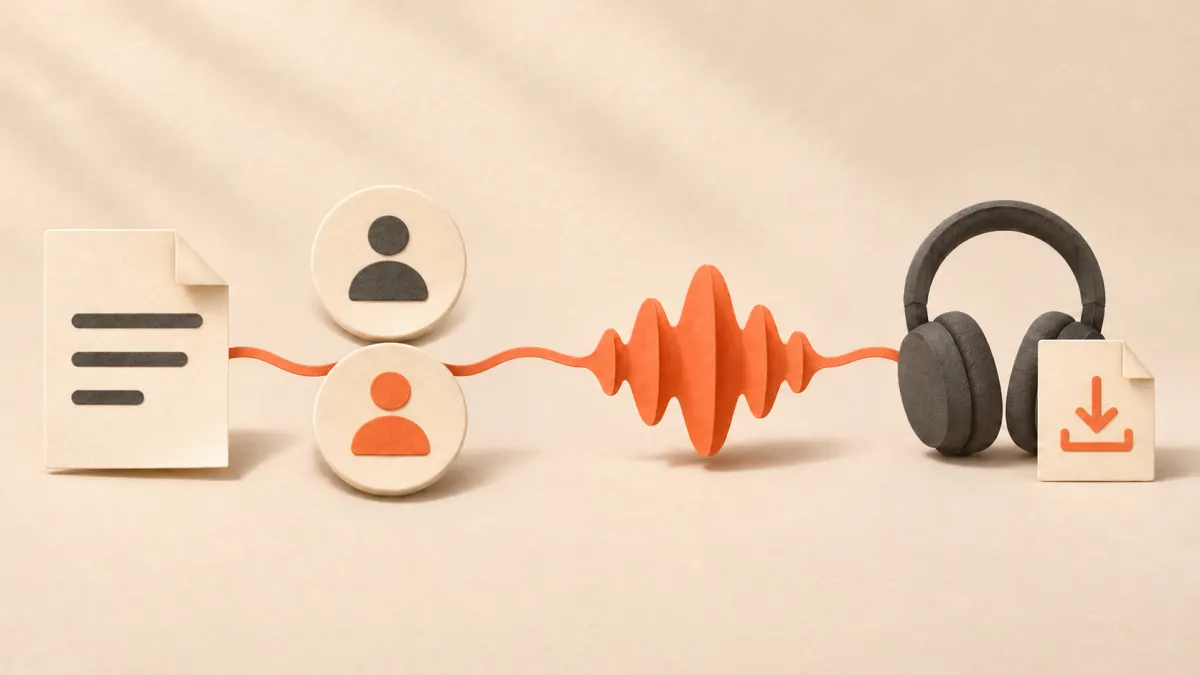
Workflow illustration: enter a script, optionally choose a voice, then generate and listen.
- Open the text-to-speech tool Select Text to Speech. For an ordinary reading there is no need to upload a recording. Voice Cloning is the separate mode for working from a reference clip.
- Paste one of the sentences above, or write a single sentence of your own. The counter under the text box shows the current limit. In our signed-out English web test it read 43 / 120, leaving room for 77 more characters. Check the counter for your own session before pasting a longer passage.
- Leave the voice unselected to try the same setup as our clips. If you want to compare a preset, keep the words and punctuation the same so you can hear what changes.
- Choose Generate Speech once. If you see Queued, the request has already been accepted. Keep the tab open while it runs. When the result player appears, listen to the whole sentence and use Download to save your take. If the browser opens a media player, use its save or download command.
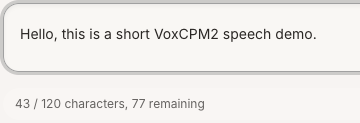
Detail from the text box in our signed-out web test. The two examples above were rendered separately with the site's internal workflow.
If the result is missing
A queued request has no audio file yet. Wait for the player before looking for Download. If Generate Speech is unavailable before you submit, check that the text box contains your sentence and that the counter allows it. For a passage that exceeds the limit, split at a sentence boundary and keep the punctuation. Check the site's plans and usage limits if you need more room.
If a failure message appears, read it before choosing Retry. Check your text and any usage-limit message, then choose Generate Speech to submit a new request. While a request still says Queued, avoid submitting the same text repeatedly.
The online tool runs the VoxCPM2 speech model. For the upstream implementation and its reference recordings, see the OpenBMB repository and the official demo collection.